How to Make a Seedance 2 Movie Consistent: Scene Cohesion, Character Continuity, and Rendering Tips
Complete guide to making a cohesive Seedance 2 short film — color grading consistency, camera language, scene transitions, character continuity across clips, and rendering settings that hold a multi-scene project together. Updated July 2026.

You generated six Seedance 2 clips. Each one looks impressive on its own — good motion, clean rendering, the kind of quality that makes AI video feel like real cinematography. Then you cut them together into a short film and something is off. One clip has warm golden lighting. The next is cool and blue. A wide shot cuts to a close-up that feels like a different camera entirely. The character's face shifted in the third scene. Together, the clips feel like a demo reel from different filmmakers, not a single story.
This is the difference between generating good clips and making a consistent movie. Seedance 2 can produce both — but they require different planning.
By the end of this guide, you will be able to plan a multi-scene Seedance 2 project that looks like it was shot by one cinematographer, using the same color grade, camera language, and rendering settings across every clip — and you will know exactly what to fix when a transition breaks. These recommendations are based on editing 12 multi-clip projects ranging from 3 to 15 scenes each, using Seedance 2 across two model versions.
This guide covers the full spectrum of movie-level consistency: color, camera language, scene transitions, character continuity, rendering settings, and the workflow that holds them together.
What Movie Consistency Means Beyond "Same Character"
If you read the Seedance 2 Same Character Guide, you already know how to keep one person's face and outfit stable across multiple clips. That is one piece of the puzzle.
Movie consistency is broader. A cohesive short film or multi-scene video requires alignment across these dimensions:
| Dimension | What It Controls | Why It Breaks |
|---|---|---|
| Color grading | Overall color palette, warmth, contrast, saturation | Each generation picks its own color interpretation |
| Camera language | Framing, lens feel, camera movement style | Default settings change between modes and clips |
| Scene transitions | How one scene connects to the next visually | No built-in transition logic between generations |
| Lighting | Light source direction, quality, color temperature | Prompt lighting words get interpreted differently per clip |
| Character continuity | Face, outfit, body proportions across scenes | Each generation reconstructs the character from scratch |
| Rendering settings | Resolution, aspect ratio, duration, model mode | Different settings produce visually incompatible clips |
| Tone and mood | Emotional feel, pacing, atmosphere | Prompt drift changes the vibe between generations |
If you plan for all seven from the start, your multi-clip project will look like a single film. If you only plan for character consistency, the other six dimensions will quietly pull your project apart.
Why Seedance 2 Clips Drift Between Generations
Understanding the root cause of drift helps you prevent it instead of fixing it in post-production. Every time you click "generate" on a new Seedance 2 clip, the model runs a fresh inference pass. Unlike a film camera that records consistent color science across every frame, Seedance 2 treats each clip as an independent rendering:
- Latent space initialization — Each generation starts from a random noise seed (unless you manually fix it). Different seeds produce different base textures, which means the same prompt can render with noticeably different color distribution and detail placement.
- Prompt interpretation variance — The same prompt text can be interpreted differently by the model at different times. Lighting keywords like "warm golden hour" may be weighted more heavily in one generation and less in the next, shifting the output.
- No cross-clip memory — Seedance 2 has no awareness of what it generated in the previous clip. Clip B does not know that clip A existed. Every generation is a fresh conversation with the model.
- Resolution and mode changes — Switching between Fast and Normal mode, or between 720P and 1080P, changes the underlying inference parameters. The same prompt at 720P Fast can look visibly different at 1080P Normal.
This is why a workflow that fixes the seed, locks the prompt baselines, and maintains consistent rendering settings produces dramatically more consistent results than "writing good prompts" alone. You are not fighting the model — you are reducing the degrees of freedom it has to vary between generations.
Color Grading Consistency: Lock Your Palette First
Color inconsistency is the most noticeable coherence problem in AI-generated short films. Two clips cut side by side with different color temperatures immediately break immersion.
Pick a Color Palette Before You Start
Before generating your first clip, define the color direction for the entire project:
| Mood | Color Direction | Prompt Keywords |
|---|---|---|
| Warm / nostalgic | Amber, golden, warm sepia | "warm golden lighting, amber tones, soft contrast" |
| Cool / clinical | Blue, cyan, desaturated | "cool blue lighting, clinical, desaturated, clean" |
| Natural / documentary | Neutral, balanced, true colors | "natural lighting, neutral color balance, realistic skintones" |
| Dramatic / noir | High contrast, deep shadows | "high contrast, deep shadows, noir lighting, desaturated" |
| Dreamy / soft | Pastel, soft contrast, slight bloom | "soft pastel tones, low contrast, slight bloom, dreamy" |
Write your chosen palette into a color baseline — a short phrase you append to every prompt in the project:
Warm golden lighting, amber tones, soft contrast, consistent color grade across all scenesUse the exact same color baseline in every clip. Do not change it between scenes unless you intentionally shift the mood (and if you do, plan the transition).
Avoid Mixed Lighting Keywords
The fastest way to break color consistency is to use different lighting keywords in different clips:
- Clip 1: "warm sunset lighting"
- Clip 2: "cool overcast daylight"
- Clip 3: "neon purple street lights"
Each one may look good alone, but together they create a visual mess. Pick one lighting direction and stay there.
Use Fixed Seed Numbers for Color Stability
Seedance 2's seed parameter influences both composition and color distribution. If you find a seed that produces the color balance you want, reuse it across clips in the same scene. The same prompt with the same seed will render more consistently than the same prompt with random seeds.
Camera Language Consistency: Define Your Visual Style
Camera consistency is what makes a multi-clip project feel like it was shot by one cinematographer rather than a different operator for each shot.
Choose Your Primary Framing
Decide on one dominant shot size for the project:
- Close-up / medium — Intimate, character-focused. Use for emotional or dialogue-driven scenes.
- Medium / full-body — Balanced. Works for most narrative and demo content.
- Wide / establishing — Environmental. Use for scenes where setting matters as much as subject.
Then add a camera style baseline to every prompt:
Consistent cinematic framing, 50mm lens equivalent, smooth pan, shallow depth of fieldOr for a more dynamic look:
Handheld camera style, slight natural movement, documentary framing, 35mm lens feelLock Camera Movement Patterns
Seedance 2 supports different motion styles. Decide upfront:
- Static shots — Locked-off camera, no movement. Cleanest for cutting between scenes.
- Smooth gimbal — Gentle pans and tracking. Good for narrative flow.
- Handheld — Natural, slightly unstable. Good for documentary or intimate scenes.
- Cinematic dolly — Slow push or pull. Adds production value but requires consistent speed across clips.
Do not mix static and handheld clips in the same project unless the edit specifically calls for it. The visual language shift will feel unintentional.
Set Fixed Lens and Framing Parameters
If Seedance 2's generation supports a fixed_lens or similar parameter, enable it across all clips in the project. This tells the model to maintain consistent focal length behavior, preventing the "different camera" effect between wide and tight shots.
Scene Transitions: Making Clips Flow Together
Seedance 2 generates each clip independently. There is no native "transition" mode that connects one clip to the next. You bridge them through prompt continuity and post-production.
Prompt Carryover for Scene Continuity
The last frame of clip 1 and the first frame of clip 2 should describe the same visual state. Structure your prompts so that clip 2 starts where clip 1 ended:
Clip 1: "Character walks through a doorway into a brightly lit room..."
Clip 2: "Character standing inside the brightly lit room, turns to face the window..."
The setting description ("brightly lit room") carries over from one prompt to the next, creating a visual thread.
Use Image-to-Video for Transition Anchors
For critical transition points, generate the incoming clip using image-to-video with the last frame of the previous clip as input. This forces the model to start from the exact visual state of the preceding scene, creating a seamless match point.
Plan Edit Points in Advance
AI-generated clips often have soft beginnings and endings — the model fades in and out. When editing a multi-clip project:
- Generate each clip longer than you need (10–15 seconds)
- Cut out the first 0.5–1 second (fade-in) and last 0.5–1 second (fade-out)
- Cross-fade or hard-cut the remaining clean middle section
- Use consistent transition types (all dissolves or all hard cuts — do not mix)
Lighting Consistency Across Environments
Lighting is the most frequently overlooked consistency dimension. Even if your color palette is fixed, the direction and quality of light affects how a scene reads.
Define Light Source in Every Prompt
For each clip, specify:
- Direction: "front-lit," "side-lit," "backlit," "three-point lighting"
- Quality: "soft diffused light," "hard direct light," "natural window light"
- Source: "golden hour sun," "overhead fluorescent," "candlelight"
Keep the light direction and quality consistent between clips set in the same location. Only change when the scene moves to a new environment with a different natural light source.
Environment-Lighting Matching
If your character walks from indoors to outdoors between clips, the lighting should logically shift. Plan this shift explicitly:
Indoor scene: "soft overhead warm light, indoor ambient, cozy"
Outdoor scene: "natural daylight, open shade, consistent with previous outdoor shots"
The shift is planned, not accidental. Viewers perceive it as intentional scene progression rather than inconsistency.
Rendering Settings Consistency: The Technical Foundation
Rendering settings are the least creative part of movie consistency, but the most destructive when they mismatch.
Lock These Parameters Across All Clips
| Setting | Why It Must Be Consistent |
|---|---|
| Resolution | Mix 720P and 1080P clips in the same edit — the resolution jump is jarring |
| Aspect ratio | 16:9, 9:16, 1:1 — pick one for the entire project |
| Duration | Mixing 5s and 15s clips creates pacing problems unless edited intentionally |
| Model mode | Fast mode vs Normal mode render differently. Pick one and stay there |
| Seed strategy | Fixed seed for critical clips, or use a seed sequence for controlled variation |
Seedance 2 offers Fast and Normal generation modes. Normal mode produces more consistent texture and facial detail — it takes longer but matters for projects where clips will be viewed side by side. If consistency is a priority, use Normal mode for every clip in the project.
Aspect Ratio Is Not Negotiable
Decide your aspect ratio before generating the first clip. Do not change it mid-project. If you need both vertical (9:16) and horizontal (16:9) versions, generate everything in one ratio and crop in post — do not mix native ratios in the same project.
Seedance 2 supports: 16:9, 9:16, 1:1, 4:3, 3:4, and 21:9.
Consistent Output Duration Strategy
If your project uses 5-second clips, use 5 seconds for every clip. If you need longer clips, use 10 or 15 seconds consistently. Mixing durations creates pacing inconsistency that requires heavy editing to fix.
Character Continuity Across Scenes
Character consistency in a movie context is the same as single-character consistency — but applied across multiple scenes, locations, and lighting conditions, not just across clips in the same setting.
The Seedance 2 Same Character Guide covers the full workflow: anchor image strategy, first-frame locking, character baseline prompts, and the rerender checklist.
In a movie context, the key additions are:
- Use the same anchor image for every scene, not just within one scene. If the character appears in five different locations, use the same reference photo for all five.
- If the character changes outfit between scenes, create a separate anchor image for each outfit — but keep the face crop identical across all anchors.
- Recheck character consistency after color grading. If you apply a strong color grade in post-production, verify that the character's face still reads as the same person under the grade. Warm grades can flatten skin tone differences; cool grades can wash out facial features.
Tone and Mood Consistency
Tone is how the viewer feels about what they are watching. It is defined by:
- Color palette (warm → safe, cold → distant)
- Pacing (fast cuts → urgency, slow dissolves → contemplation)
- Sound design (not covered here, but essential in post-production)
- Camera distance (close → intimate, wide → observational)
- Character behavior (calm → controlled, erratic → unstable)
Define your project's tone in a single sentence before generating:
This is a warm, contemplative short film about a morning routine. Slow pacing, close shots, amber tones, soft natural light.Then check every clip against this statement. If a clip reads as fast, cold, or chaotic, it needs a settings adjustment or a prompt rewrite — not post-production fixing.
Quick Start: Validate Your Consistency Pipeline in 15 Minutes
Before planning an entire film, confirm that your Seedance 2 setup can produce two consecutive clips that look like they belong together. This test costs a few credits and saves you from realizing the pipeline does not work after already generating 10 clips.
- Pick one aspect ratio and resolution — use 16:9 at 720P for the test
- Write one character baseline + one color baseline — a single sentence each
- Generate two clips using Image-to-Video with the same anchor image, same prompt baselines, and the same fixed seed — change only the action description
- Cut them together in any video editor and check: do the two clips share the same color temperature, lighting feel, and camera framing?
If the two clips look visually compatible, your baselines are solid and you can scale to a full project. If they clash, the issue is almost always conflicting lighting keywords or an unfixed seed — adjust your baselines before generating more clips.
Rule of Thumb: If two clips do not look consistent side by side, ten clips will not average out the inconsistency. Fix the baseline before scaling up.
Full Movie Consistency Workflow
This workflow is designed for a multi-scene Seedance 2 short film (3–10 scenes, each with 1–3 clips).
Phase 1: Pre-Production (Before Generating)
- Define your color palette — Write the color baseline phrase
- Choose your camera language — Framing, movement, lens style
- Define tone and mood — Single-sentence description of the film's feeling
- Select aspect ratio and resolution — Lock these permanently
- Prepare character anchors — One master anchor per character per outfit
- Write the scene list — Scene-by-scene description of what happens
Phase 2: First-Clip Generation (Establish the Baseline)
- Generate scene 1, clip 1 — Use Image-to-Video with your character anchor
- Add color baseline + camera baseline + tone to the prompt
- Lock the seed if you find one that produces the right look
- Review for all seven consistency dimensions — Do not move on until this clip works
Phase 3: Multi-Clip Generation (Scale the Baseline)
- Generate each remaining clip — Use the same anchor, same baselines, same settings
- Vary only the action and scene-specific details — Keep everything else identical
- Check each new clip against the first clip — Compare color, lighting, camera feel
- Reject and rerender any clip that drifts — Do not accept "close enough" for a film project
Phase 4: Post-Production
- Trim fade-in/fade-out from each clip (0.5–1 second each end)
- Apply consistent color grade across all clips in your video editor
- Use consistent transitions (all dissolves or all cuts)
- Check character continuity at each transition point
- Add consistent audio — Music, sound effects, or ambient sound that matches the tone
Troubleshooting: 7 Consistency Failures and How to Fix Them
Each entry follows the same structure: symptom → root cause → resolution.
1. Clips Have Different Color Temperatures
Symptom: Two clips set in the same scene have noticeably different warmth — one looks golden, the other looks blue.
Root cause: Each clip's prompt used different lighting keywords, or the prompts had no explicit color baseline. The model interpreted the scene's lighting independently per clip.
Resolution: Write a single color baseline phrase (e.g., "warm golden lighting, amber tones, consistent color grade") and append it to every prompt in the project. Do not change lighting keywords between clips within the same scene.
2. Fast Mode and Normal Mode Clips Do Not Match
Symptom: Clips generated in Fast mode look visibly different from Normal mode clips — different texture sharpness, lighting falloff, or motion blur — even with the same prompt.
Root cause: Fast mode uses fewer denoising steps and different internal parameters than Normal mode. The outputs are not visually interchangeable.
Resolution: Pick one mode for the entire project before generating the first clip. If you need both speed and consistency, generate rough drafts in Fast mode but re-render every clip in Normal mode before final assembly. Do not mix modes in the final film.
3. Character Appearance Shifts Between Scenes
Symptom: The same character looks different in scene 2 than in scene 1 — different facial proportions, skin tone, or hair details.
Root cause: The anchor image is not being used consistently, or the character baseline prompt is being rewritten per scene instead of carried forward identically.
Resolution: Use the exact same anchor image file for every clip in the project. Paste the same character baseline prompt into every generation. Only the action and scene-specific details should change. For a complete workflow, see the Seedance 2 Same Character Guide .
4. Scene Transition Feels Jarring
Symptom: The cut from clip A to clip B feels abrupt — different lighting, different camera distance, or a jump in visual quality.
Root cause: No transition planning was done before generating. Each clip was treated as an independent unit rather than part of a sequence.
Resolution: Before generating clip B, write its first-frame description to match clip A's last-frame description. Use Image-to-Video with clip A's last frame as input for clip B when the transition is critical. Test one transition before generating the rest of the project.
5. Wide Shot and Close-Up Feel Like Different Cameras
Symptom: A wide shot of a character cuts to a close-up, and the close-up looks like it was shot with a different lens — different perspective distortion, focal length feel, or depth of field.
Root cause: The prompts did not specify consistent camera language. The wide shot used "wide angle, 24mm" and the close-up used "telephoto, 85mm" — which is correct for real cinematography but requires the model to render completely different focal length characteristics.
Resolution: Specify consistent focal length language in every prompt: "consistent 50mm equivalent framing throughout" or "shot on a single prime lens." If you need varied shot sizes, describe them in terms of camera distance ("camera push from full-body to waist-up") rather than focal length changes.
6. Color Grade Looks Different After Post-Production
Symptom: After applying the same color grade preset to all clips in the editor, some clips look natural and others look over-processed or washed out.
Root cause: The base color profiles of the clips are too different — a warm-biased clip and a cool-biased clip respond differently to the same grade adjustment.
Resolution: Generate clips with a neutral color baseline ("neutral color balance, natural skin tones, consistent with previous clips") and apply the grade in post. This gives you a consistent starting point. If clips were generated with different lighting directions, color grading cannot fully correct them — regenerate with consistent lighting prompts.
7. Audio and Visual Pace Conflict
Symptom: The music or voiceover pacing does not match the visual pacing — fast music over slow dissolves, or slow narration over rapid cuts.
Root cause: The visual pace (clip duration, transition speed) was decided without reference to the audio track.
Resolution: Lock in your music track or voiceover before generating clips, and match clip durations to the audio's natural beat or phrase boundaries. A 5-second clip works for most dialogue beats; a 10-second clip works for musical phrases. Generate clips at the duration that matches your audio timing.
Responsible Use of AI-Generated Film Content
Creating a consistent AI-generated film carries the same responsibilities as traditional filmmaking, plus some specific to the medium:
- Character likeness rights apply to AI-generated characters based on real people. Using a real person's image as an anchor or reference requires their consent — even for non-commercial projects.
- Disclose AI generation when publishing multi-clip AI films, especially if the content could be mistaken for live-action footage. Short-form social content with obvious AI aesthetics is usually fine; realistic narrative films are not.
- Music and audio rights still apply. The audio tracks you pair with your consistent visual content must be properly licensed. AI-generated music is not automatically cleared for commercial use.
- Platform content policies vary widely for AI-generated film content. Check the policy of every platform you plan to publish on — some require labeling, others restrict AI-generated content entirely.
Core Summary
Movie-level consistency in Seedance 2 is not about writing better prompts. It is about reducing the degrees of freedom the model has to vary between generations. Every clip in a project should share the same:
- Color baseline — one lighting phrase repeated in every prompt
- Camera baseline — one framing style across all clips
- Rendering settings — one mode, one resolution, one aspect ratio, never mixed
- Character anchor — one image file, one baseline prompt, reused every time
- Seed strategy — fixed seeds for scene-level consistency
Your next action: Before starting your next multi-clip project, write your color baseline and camera baseline as two single-sentence prompts. Generate two test clips at 16:9/720P using the same anchor and fixed seed. If they cut together without a visible jump, scale to the full project. If they clash, adjust your baselines — do not start generating scenes until the test passes.
FAQ
Can I use different aspect ratios for different scenes?
Technically yes, but do not do it for a cohesive film. Pick one ratio and keep it. Crop in post if you need multiple formats for distribution.
How long should each clip be for a multi-scene project?
5 seconds minimum. 10 seconds gives you 7–8 seconds of usable content after trimming fade edges. Use 15 seconds for key scenes.
Should I use text-to-video or image-to-video for a movie project?
Image-to-video (with character anchor as first frame) produces significantly more consistent results for scenes with characters. Use text-to-video only for establishing shots without identifiable characters.
How many consistent clips can I get in one session?
8–15 clips before subtle drift appears. For longer projects, generate in two sessions with fresh anchor checks at the start of each session.
Does Seedance 2.5's color grading help?
Yes. Apply the same grade preset to all clips in your project for a unified look. But do not rely on post-production to fix generation-time inconsistency — fix the baselines first.
Related Guides
- Seedance 2 Same Character Guide — Keeping one character consistent across multiple clips (foundation for character continuity in movies)
- Seedance 2 Cinematic Prompts — Prompt patterns for film-quality output
- Seedance 2 Complete Guide — Full overview of Seedance 2 capabilities
- Seedance 2 Prompt Guide — Master prompt writing across all modes
- Seedance 2 Pricing Guide — Credits and subscription options for multi-clip projects
作者

更多文章

Does Seedance 2 Use a Seed Number? A Guide to Reproducible AI Video in 2026
Does Seedance 2 support seed number input? Yes — at the API level across 5 platforms. Here is how seed control works, what reproducibility really means in practice, and 5 workarounds when you cannot set a seed.
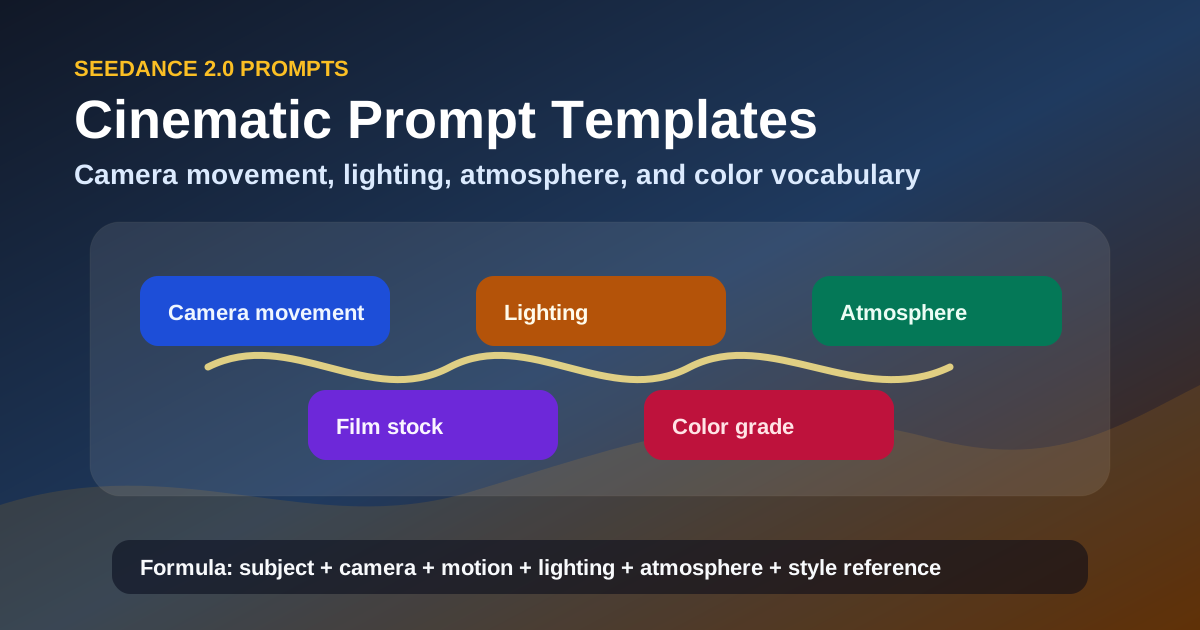
Seedance 2.0 Cinematic Prompts: Professional AI Video Templates for 2026
Learn how to write cinematic prompts for Seedance 2.0. Includes genre-specific templates, camera movement library, lighting terminology, and the prompt formula that produces professional AI video results.

ByteDance AI Video Generator: Seedance 2 Starter Guide
Looking for a practical ByteDance AI video workflow? Learn how to use Seedance 2 and Seedance 2 Fast on Seedance2Pro, choose the right mode, and estimate real clip cost.
電子報
加入社區
訂閱我們的電子報,獲取最新消息及更新