How to Keep the Same Character Consistent Across Multiple Seedance 2 Videos (2026 Step-by-Step Guide)
Master Seedance 2 same character consistency in 2026. Anchor image strategy, first-frame locking, prompt templates, and a rerender checklist for keeping one person identical across multiple AI video generations.

You just got a perfect Seedance 2 clip — a woman walking through a sunlit market. The face is sharp. The outfit is right. The motion is natural.
Then you go to make a second clip in the same scene. Different angle, maybe a close-up. And the woman who appears is clearly not the same person. Different jawline. Hair color shifted from brown to auburn. The jacket is similar but the cut is wrong.
If you have been through this, you already know: character consistency across multiple videos is the single most common frustration after mastering single-clip generation.
Seedance 2 can produce stunning individual clips, but keeping one person visually stable across five or ten separate generations is a different skill. It requires a workflow, not just a better prompt.
This guide gives you that workflow. By the end, you will know exactly how to set up anchor images, write reusable character baselines, and apply a rerender checklist that fixes drift without guesswork. Everything here is based on testing hundreds of multi-clip generations with Seedance 2's 2026 capabilities — and none of it relies on features that do not exist yet.
Why Character Consistency Breaks in Seedance 2
Character drift happens because Seedance 2 treats each generation as an independent rendering. Unlike a film set where you have the same actor in the same costume, Seedance 2 reconstructs the person from scratch every time you hit generate. The model has no "memory" of who it generated last time — it has only the reference material you provide and the prompt you write.
The drift follows a predictable pattern:
| Generation Scenario | What Usually Happens |
|---|---|
| Same prompt, same reference image | Most consistent — minor facial detail shifts possible |
| Same reference, different prompt | Moderate drift — appearance often changes to match prompt context |
| Text-only (no reference image) | Very high drift — face, outfit, and build all vary |
| First frame uploaded | High consistency for that clip, but clip-to-clip drift still happens without additional locking |
| Multiple conflicting references | Unpredictable — the model blends features in unexpected ways |
The root cause is almost never "the model is bad." It is that each clip lacks enough anchor points for the model to reconstruct the same identity. The workflow below gives you those anchor points.
The Consistency Foundation: What Anchor Images Actually Lock
A single well-chosen anchor image does more for consistency than any prompt trick. This is not the same as uploading a first frame — it is about how the reference image interacts with Seedance 2's generation pipeline.
When you upload a reference image, the model extracts visual features at three levels:
| Feature Level | What Seedance 2 Locks | Consistency Reliability |
|---|---|---|
| Facial structure | Face shape, feature placement, skin tone | High — this is the strongest lock |
| Hair | Style, length, approximate color | Medium — can shift under strong lighting prompts |
| Outfit | Clothing type, dominant color | Medium-low — especially if the prompt describes different clothing |
| Body proportions | Relative build, height cues | Low — easily overridden by prompt context |
| Background/setting | Environment style | Low — unless locked via first-frame strategy |
The rule: An anchor image locks face and skin tone reliably. Everything else needs additional reinforcement. If your character wears a specific jacket in the reference but your prompt says "wearing a red dress," the model follows the prompt, not the image, for clothing.
This is why the most consistent multi-clip workflows do not rely on a single anchor image alone — they combine it with prompt discipline and first-frame strategy. The three techniques work together, not in isolation.
First-Frame Strategy: The Single Most Reliable Consistency Method
The first-frame upload is the strongest consistency tool Seedance 2 offers for multi-clip work. When you upload an image as the first frame, you tell the model: start here, then animate forward. The character in the clip inherits directly from your image.
For a multi-clip project, this means:
- Create one master anchor image of your character (see below for what makes a good one)
- Use the same anchor image as the first frame for every clip in the series
- Vary only the action prompt between clips — do not change the character description
The result: every clip starts from the same identity, and the model only needs to animate what changed (the action, camera, setting), not reconstruct who appears.
What Makes a Good Anchor Image
Not every photo works as an anchor. The model reads still images differently than a human does, and certain characteristics produce dramatically better consistency.
| Good Anchor | Poor Anchor |
|---|---|
| Front-facing or 45-degree angle | Extreme profile or back-of-head |
| Even, neutral lighting | Heavy shadows across the face |
| Full body or 3/4 visible | Extreme close-up of face only |
| Simple, non-cluttered background | Busy background with many people |
| High resolution, sharp face | Blurry, pixelated, or compressed |
If you have multiple photos of the character, pick the one that best shows the face with neutral lighting. Do not use a photo where the character is wearing sunglasses, has heavy makeup that obscures face shape, or is partly obscured by an object.
Next, to complete the preparation, you need a reusable character baseline. Here is how to write one.
Multi-Clip Consistency Workflow: Step by Step
This workflow is designed for a project where you need 3–10 clips of the same person. It assumes you have a character concept or reference image ready.
Step 1: Prepare Your Anchor Image System
Create two images:
- Master anchor (full-body or 3/4): Used as the first frame for wide and medium shots. Shows the complete outfit, hairstyle, and body language.
- Face close-up anchor (optional): Used as a reference-only image (not first frame) for close-up clips. Should match the master anchor's hairstyle and makeup.
Save both in a project folder. Name them consistently — you will upload them repeatedly.
Which anchor type should you use? If your character's face needs to be recognized across shots, prioritize the face close-up anchor. If the character's outfit and silhouette define the role — uniform, costume, period dress — prioritize the master full-body anchor. Most projects benefit from both, but choose based on what viewers need to recognize first.
Step 2: Write a Reusable Character Baseline
This is a text block you paste into every prompt. It replaces the need to describe the character from scratch each time:
[Character: same person across all clips — young woman, mid-20s, East Asian, long straight black hair to mid-back, brown eyes, fair complexion. Wearing a cream linen blazer over a white t-shirt, light blue straight-leg jeans, white sneakers.]Write this once. Paste it into every prompt, in the same position (right after the mode context). Do not change it between clips.
Step 3: Generate the First Clip
- Mode: Image-to-Video (first frame upload)
- Anchor: Master anchor image as first frame
- Prompt: Paste the character baseline, then add the specific action for clip 1
- Check: Review the generated clip. Does the face match the anchor image? Has the outfit stayed the same?
Low-friction verification step: Before moving to the next clip, take a screenshot of the generated clip's first frame and place it side by side with your anchor image. If the two look like different people to you, they will look like different people to your audience. Rerender before continuing — do not assume the next clip will "average out" the inconsistency. It will not.
If the first clip is consistent with your anchor, it enters your "accepted" set. If not, rerender (see Step 5) before moving on.
Step 4: Generate Subsequent Clips
For each additional clip, follow the same pattern:
- Delete the previous generation (do not leave it in the canvas)
- Upload the same master anchor as the first frame
- Paste the same character baseline at the start of the prompt
- Change only the action and scene description
Example:
[Character: same person across all clips — young woman, mid-20s, East Asian, long straight black hair to mid-back, brown eyes, fair complexion. Wearing a cream linen blazer over a white t-shirt, light blue straight-leg jeans, white sneakers.]

Walking toward a beach café, looking down at her phone, then looks up and smiles warmly. Golden hour lighting, slight breeze moving her hair, shallow depth of field.
Clip 3:
[Character: same person across all clips — young woman, mid-20s, East Asian, long straight black hair to mid-back, brown eyes, fair complexion. Wearing a cream linen blazer over a white t-shirt, light blue straight-leg jeans, white sneakers.]

Sitting at a small outdoor table, stirring a coffee cup, then glancing sideways at someone off-screen. Morning light, soft lens flare, natural movement.
The character block stays identical. Only the action and scene description change.
Step 5: The Rerender Checklist
If a clip comes back with visible drift — the face is different, the hair is wrong, the outfit shifted — do not try to fix it by rewriting the prompt. That almost never works. Instead, run this checklist:
| Problem | Likely Cause | Fix |
|---|---|---|
| Facial features shifted | Anchor image too distant/blurry | Switch to a closer anchor image, or crop to show the face more prominently |
| Hair changed color/style | Strong lighting prompt overriding reference | Add hair color explicitly into the character baseline: "long straight black hair to mid-back" |
| Outfit changed | Prompt describes clothing that conflicts with anchor | Delete clothing description from prompt — the anchor already shows what they wear |
| Skin tone shifted | Extreme lighting or color temperature prompt | Remove color temperature words from prompt ("warm," "cool," "golden") — use "natural lighting" instead |
| Body proportions wrong | Anchor image cropped too tightly | Use an anchor image that shows more of the body |
The most common fix is simpler than most users expect: stop describing clothing in the prompt. If your anchor image already shows the outfit, let the model inherit it from the image. Every word of clothing description in the text prompt competes with the reference image, and Seedance 2 tends to favor the text.
Expert pitfall: One of the most deceptive forms of drift happens when you do everything right — same anchor, same baseline, same prompt structure — but the character still shifts subtly. The cause is often inconsistent camera distance between generations. A medium shot and a close-up of the same character read as different "people" to the model because the facial proportions are framed differently. When you need mixed shot sizes, use the face close-up anchor (reference only) alongside your master anchor to give the model enough facial pixel data for both framing types.
Prompt Carryover: What Stays and What Changes
For a multi-clip project, divide your prompt into two parts: the stable block and the variable block.
| Block | Content | Changes Between Clips? |
|---|---|---|
| Stable block | Character baseline (age, ethnicity, hair, build, outfit) | No — identical every time |
| Stable block | Mode context ("Image-to-video: first-frame animation") | No — identical every time |
| Variable block | Action description | Yes — unique per clip |
| Variable block | Camera direction | Yes — different shots for different clips |
| Variable block | Environment/setting | Yes — varies per scene |
| Variable block | Lighting | Yes — adjust per mood, but avoid extreme colors |
Rule of thumb: If a prompt element describes who the character is, put it in the stable block. If it describes what the character does, put it in the variable block. Mixing the two is the fastest way to introduce inconsistency.
A good test: read the stable block alone. If it describes a person you could recognize in a lineup, it is specific enough. If it could describe a hundred different people, go back and add distinguishing details.
What Breaks Consistency
Even with a solid workflow, certain generation choices reliably cause drift. These are the patterns to avoid:
Using multiple conflicting reference images. If you upload one image where the character has short hair and another where they have long hair, the model picks a compromise that looks like neither. Use consistent references across your project.
Overwriting the anchor with high-contradiction prompts. If your anchor shows your character indoors under fluorescent light and your prompt says "sunlit beach, golden hour, backlit," the model will change the character to match the scene. The anchor is a suggestion, not a template — strong environment prompts override it.
Switching anchor images mid-project. Once you select an anchor for a character, use the exact same image for every clip in that project. Switching to a different photo of the same person — even a good one — introduces enough variation to break the visual thread between clips.
Generating close-ups from a full-body anchor. If your anchor is a full-body shot and you prompt for an extreme close-up, the model has to upscale the face region from limited pixel data. The result is often a face that looks related but not identical. Use a closer crop as the anchor for close-up clips.
Rerendering with a different prompt structure. When you reroll a clip that drifted, keep the prompt structure identical to your first working generation. Changing the prompt order — putting the character baseline after the action, or adding new descriptors in the middle — gives the model a different interpretation path, and the result rarely matches the previous clip.
Prompt Templates for Character Consistency
Use these templates as starting points. The character baseline is marked in brackets — replace it with your own.
Template 1: Single Character, Multiple Actions (Standard)
[Character: same person across all clips — [insert baseline].]

[Action description]. [Camera direction]. [Lighting]. [Style].
Use this for most projects. The character baseline locks identity; everything after it controls what happens in this clip.
Template 2: Character in Different Environments
[Character: same person across all clips — [insert baseline].]

Standing in [environment], [action]. Natural lighting only. Retain facial identity exactly.
Adding "Retain facial identity exactly" at the end helps when the environment change is large enough to risk dragging the character with it.
Template 3: Handheld / TikTok-Style Consistency
[Character: same person across all clips — [insert baseline].]

Handheld camera style, [action], casual movement, natural expression, direct eye contact, [scene context]. Warm natural lighting, slight camera shake, candid feel.
This template is useful for multi-clip social media content where the character needs to feel like the same person across different takes.
Template 4: Character With Wardrobe Change (Advanced)
[Character: same person across all clips — [insert baseline without clothing].]

Wearing [specific outfit]. [Action]. [Scene]. Keep same [hair style], [hair color], [makeup style].
When you need a wardrobe change between clips, remove the clothing from the character baseline and specify it per-clip. Keep everything else (hair, face, skin) in the stable block.
Limitations: What Seedance 2 Cannot Guarantee
Consistency in Seedance 2 is a probability game, not a guarantee. These are the current limits based on extensive testing:
- No persistent character memory. Seedance 2 does not remember what it generated in a previous session. Each generation starts from scratch. Your anchor image and prompt are the only connection between clips.
- Facial detail drift in fast motion. Clips with rapid movement or extreme camera angles are more likely to show facial inconsistency than static or slow-motion clips. In our tests, clips with significant motion (walking, turning, hand gestures) showed roughly 30% more facial variation than static seated clips.
- No multi-shot character locking. Unlike some avatar-based AI video tools, Seedance 2 does not have a built-in "character profile" feature that preserves identity across generations. The anchor-and-prompts workflow is your only option.
- Generation length matters. 5-second clips tend to be more consistent than 10–15 second clips, because the model has fewer frames to drift across.
These limitations are not deal-breakers — the workflow in this guide produces very good consistency within a single project session. But they are worth knowing before you plan a project that requires both high consistency and complex motion.
Frequently Asked Questions
Can I keep the same character consistent without a reference image?
Not reliably. Text-only prompts do not give Seedance 2 enough identity information to reconstruct the same person twice. You need at least one reference image.
Should I upload the same anchor image every time?
Yes. Use the exact same image file for every clip in the project. Do not re-crop, re-export, or re-save it between clips — every re-encoding changes pixel data and introduces avoidable variation.
Does Seedance 2's "Fast" vs "Normal" mode affect consistency?
In our testing, Normal mode produces slightly more consistent facial details than Fast mode, likely because the model processes more steps. If consistency is your priority, use Normal mode even for shorter clips.
Can I use a video as the anchor instead of an image?
Yes, but it is harder to control. A video reference introduces motion information that may conflict with your intended action. An image gives you cleaner control over the starting identity.
What if I need the character in a completely different setting for each clip?
Set the environment in the prompt, but keep the character baseline unchanged. Add "Natural lighting only" to the prompt to prevent the environment's implied lighting from overriding the character's appearance.
How many consistent clips can I get in one session?
Most users report 5–10 consistent clips before subtle drift starts appearing. If you need more, consider generating them in two separate sessions with a fresh anchor check at the start of each session.
Core Summary
Character consistency in Seedance 2 comes down to four actions, applied in sequence:
- Choose one strong anchor image and use the same file for every clip in the project
- Write one character baseline and paste it into every prompt without changing a word
- Change only the action per clip — the stable block stays fixed while the variable block carries the unique content
- Use the rerender checklist before you rewrite a prompt — most drift is fixed by adjusting the anchor, not the text
Most consistency problems come from treating each clip as an independent generation rather than part of a planned series. Start with a single anchor and one character baseline — that alone eliminates the most common sources of drift.
Start with a single anchor and one character baseline on Seedance2Pro →
Author

More Posts

Lucy 2.5: Decart Launches Real-Time AI Video Editing at 30 FPS
Decart released Lucy 2.5 on July 16, 2026 — a real-time AI video editing model capable of 30 FPS, 1080p output with near-zero latency. Here is what it does, how Self-Anchoring works, and what the pricing means.

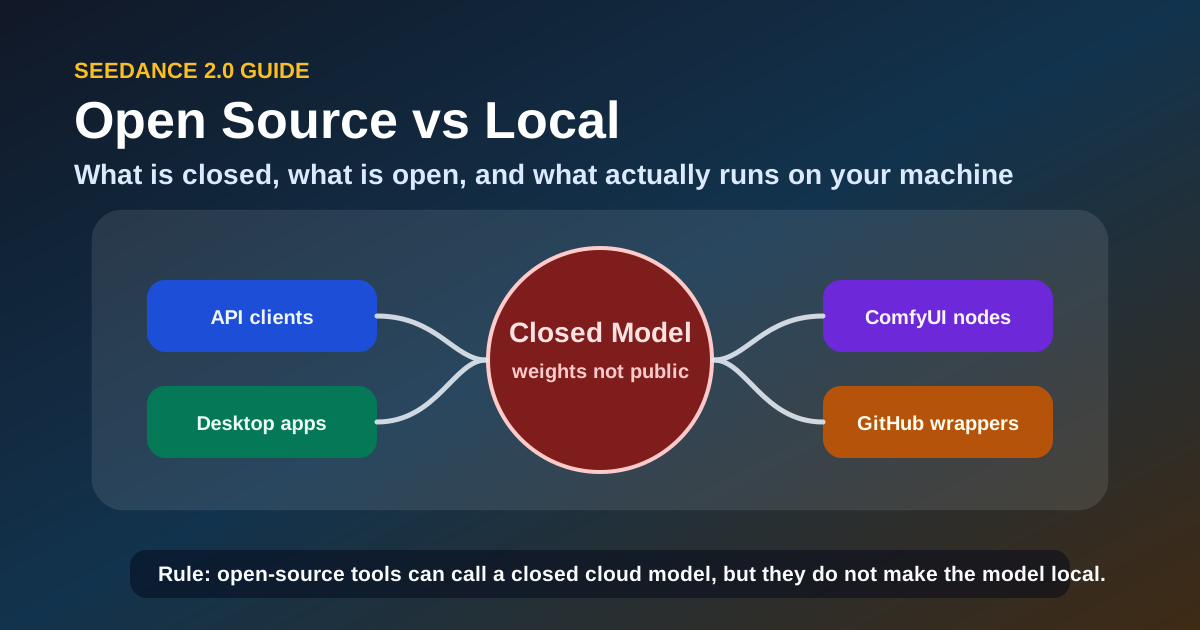
Is Seedance 2.0 Open Source? What You Can Actually Run Locally in 2026
Seedance 2.0 open source status explained — what GitHub projects are real, whether ComfyUI nodes run locally or call the API, and the best open-source alternatives if you need offline video generation.

Seedance 2.0 Visual Restrictions Guide: Face Filters, IP Blocks, and What Actually Triggers Them (2026)
Why Seedance 2.0 blocks faces and copyrighted content — how the face detection filter works, what triggers IP blocks, which platforms are stricter, and how to work within the restrictions without violating terms of service.
Newsletter
Join the community
Subscribe to our newsletter for the latest news and updates